IntelliJ IDEA and Gradle
Introduction
IntelliJ IDEA is the IDE most Java teams use with Gradle. IDEA imports build.gradle, syncs dependencies, and exposes Gradle tasks in a tool window. This chapter covers installing IDEA, pointing it at your local Gradle (or Wrapper), and optionally reusing Maven’s local repository so dependencies download once across both tools.
Prerequisites
- JDK 21 installed
- Gradle installed or a sample project with
gradlew(Windows, macOS, Linux) - IntelliJ IDEA Community or Ultimate (Install editor if you need a refresher)
Install IntelliJ IDEA
- Download from https://www.jetbrains.com/idea/
- Run the installer (Windows/macOS) or unpack (Linux)
- On first launch, pick a theme and install the Java plugin bundle if prompted
Community Edition is enough for Gradle + Java learning. Ultimate adds Spring, Java EE, and advanced frameworks.
Open or Import a Gradle Project
- Welcome screen → Open (or File → Open)
- Select the project root that contains
build.gradleorbuild.gradle.kts, orsettings.gradle - When asked, choose Open as Project (not “Open as File”)
- Wait for Gradle sync (progress bar bottom-right)
IDEA marks directories:
| Color | Meaning |
|---|---|
| Blue | src/main/java sources |
| Green | src/test/java tests |
| Orange | resources |
If src/main/java stays gray, sync failed—reload Gradle (below).
Configure Gradle in Settings
Open Settings / Preferences:
- Windows/Linux:
Ctrl + Alt + S - macOS:
Cmd + ,
Go to Build, Execution, Deployment → Build Tools → Gradle.
Use Gradle from Wrapper (Recommended for Real Repos)
For cloned team projects, select:
- Gradle distribution: Wrapper
IDEA runs ./gradlew and uses the version pinned in gradle/wrapper/gradle-wrapper.properties. This matches CI.
Use Locally Installed Gradle (Learning / gradle init)
When bootstrapping new projects with a global install:
- Gradle distribution: Local installation
- Gradle home: your install path, for example:
| Platform | Example GRADLE_HOME |
|---|---|
| Windows | D:\tools\gradle\gradle-8.12.1 |
| macOS (Homebrew) | /opt/homebrew/Cellar/gradle/8.12.1/libexec |
| macOS (SDKMAN) | ~/.sdkman/candidates/gradle/current |
| Linux (SDKMAN) | ~/.sdkman/candidates/gradle/current |
Gradle JVM should be JDK 21 (Project SDK or explicit 21 path).
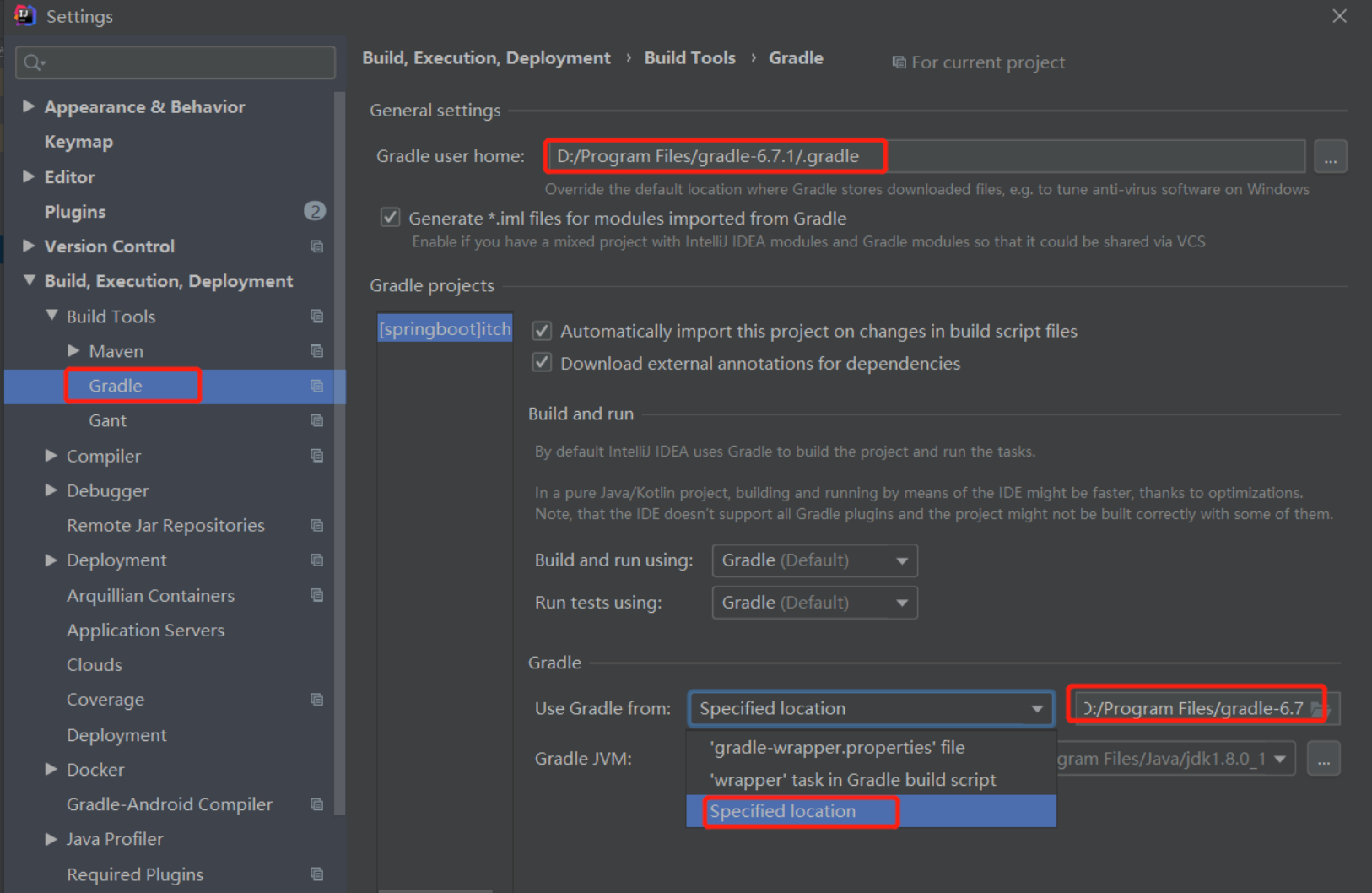
Click Apply → OK, then reload the project.
Tip
Match the Command Line
The Gradle version in IDEA should match what gradle -version prints on your terminal. Mismatches cause “works in IDE, fails in CI” confusion—even when both succeed.
Delegate Build to Gradle
On the same Gradle settings page, enable:
- Build and run using: Gradle
- Run tests using: Gradle
Then Run and Build use the same classpath resolution as ./gradlew.
Share Maven’s Local Repository (Optional)
Maven caches artifacts under:
~/.m2/repositoryGradle normally caches under:
~/.gradle/caches/modules-2/files-2.1/...To reuse JARs already downloaded by Maven, add mavenLocal() to repositories. A global hook is ~/.gradle/init.gradle:
Create the file if it does not exist, then sync in IDEA.
Warning
init.gradle affects all Gradle builds on your machine. For a single project only, put mavenLocal() inside that project’s build.gradle repositories { } block instead.
Per-project example:
repositories {
    mavenLocal()
    mavenCentral()
}
Gradle Tool Window
View → Tool Windows → Gradle (or the elephant icon on the right).
Useful sections:
- Tasks —
build,test,clean, plugin tasks (application → run) - Dependencies — resolved graph; search and conflict hints
- Reload — two arrows; click after editing
build.gradle
Shortcut: Reload Gradle project — Ctrl + Shift + O (Windows/Linux), Cmd + Shift + O (macOS).
Run and Debug Java Code
- Open a class with
public static void main - Click the green gutter icon → Run or Debug
- Or double-click application → run under Tasks (with
applicationplugin)
Built-in terminal (Alt + F12 / Option + F12):
./gradlew build
./gradlew test
On Windows:
gradlew.bat buildCompare with Maven in IDEA
| Maven | Gradle | |
|---|---|---|
| Import file | pom.xml | build.gradle / root folder |
| Tool window | Maven | Gradle |
| Reload | Reload Maven project | Reload Gradle project |
| CLI in terminal | mvn | ./gradlew |
FAQ
IDEA uses a different JDK than my terminal?
Set Gradle JVM to 21 in Gradle settings and Project SDK under Project Structure (Ctrl + Alt + Shift + S).
Sync failed: “Could not resolve…”
Check network, proxy, and repository blocks. Try ./gradlew build --refresh-dependencies in the terminal for the full error log.
Should I commit .idea?
Teams differ—many commit partial .idea files or use .gitignore. Always commit gradlew and gradle/wrapper/.
Bundled Gradle vs local?
Prefer Wrapper on shared repos. Use local only when learning gradle init before Wrapper exists.
What comes next?
Create your first Gradle project with gradle init and a tour of project files.